Contents
- Overview
- Implementation
- Folder features
- Folder Name features
- Move List To dropdown features
- Create New custom folder
- Move List To custom folder
- Search list using simple search
- Delete Custom folder
- Confirmation/Error message verbiage
- Add newly created list in custom folder
- Move Archived list to Active folder and then to custom folder
- Sort searched lists by "List Folder" order
- Summary
Overview
The purpose of this document is to describe “Folder Structure" feature for selection list.
Refer to below parent ticket for more details of requirement.
ITIPAGE-1953: Enable folder structure for Selection Lists.
The objective of introducing "Folder Structure" is to enable customers to create and maintain a folder structure for housing and organizing selection lists. All iPage users can access this feature.
To enable folder structure functionality, make sure that Change settings>> Selection List Option Preference>> Enable Folders is ON.

Note: Once any logged in user enable this User setting of Enable Folders they can see Folder Structure feature for Selection List.
Now, go to Lists tab to view actual folder structure.
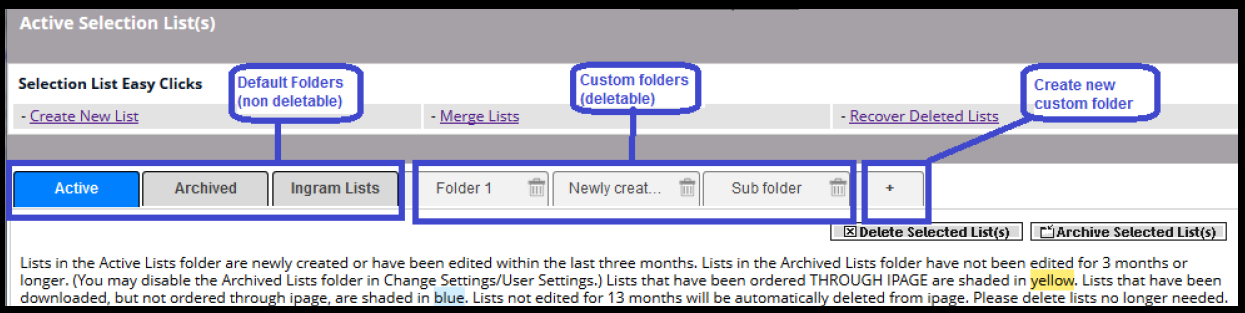
Default and Custom Folder Features
1. Default folders are highlighted in grey color.
2. Default folders: Active, Archived, Ingram Lists are non-deletable folders.
3. Maximum no. Of custom folders is 25
4. Total maximum no.of folders is 28 (3 default + 25 custom)
5. All custom folders are deletable folders.
6. Active folder includes all active non-program selection lists.
7. Archived folder includes all archived program as well as non-program lists (either manually archived lists or automatically archived (I.e non edited lists from last 3 months))
8. Ingram Lists folder includes all active program lists.
9. Once folder is deleted, all selection lists in it (either program lists/ non-program lists are moved to default Active and Ingram lists folder respectively)
10. Newly created folder will be added at the last position, After refreshing the screen all custom folders will be sorted in natural sorting order
Custom Folder name Features
1. Maximum folder name length is 100 characters.
2. Only Alphanumeric characters are allowed.
3. Symbolic characters (!, @,#) are not allowed.
4. Folder name is case sensitive.
5. Duplicate folder names are not allowed.
6. Extra spaces (left, middle, right) are ignored.
7. Renaming folder is not allowed.
Move List To dropdown Features
1. Move list to dropdown is available for Active, Ingram List, Custom folders
2. Move list to dropdown is not available for Archived folder.
3. Any list from archived folder should be activated and then user can move that activated list from Active folder into another folders.
OR
To move any archived list to custom list folder, user first move the list to Active list where he/she can see the Move List dropdown. User can select the desired custom folder from the Move To dropdown which he wants to move.
4. Default folders (Active, Archived, Ingram Lists) are not displayed in the Move list to dropdown. I.e User cannot move lists into default folders.
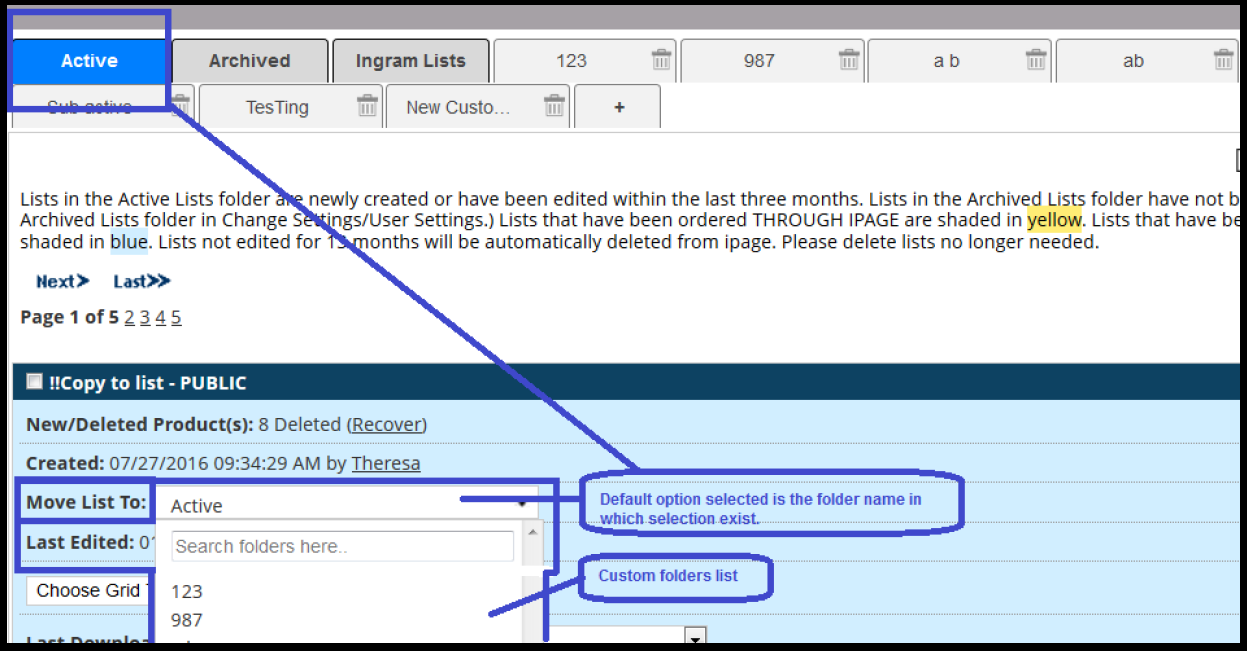
5. By default selected Move List To option is the folder name in which the selection list exist.
6. Newly added folder are displayed in Move List to dropdown without refreshing page.
7. Recently deleted folder are ignored in Move List to dropdown without refreshing page.
Create New Custom Folder
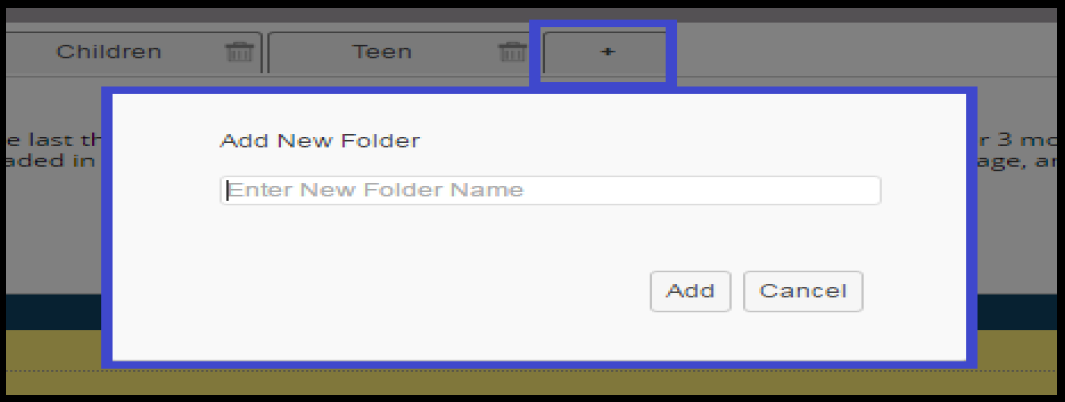
To add/ create new custom folder, Click on (+) button, Enter folder name, Click on Add button.
Move Selection list to custom folder
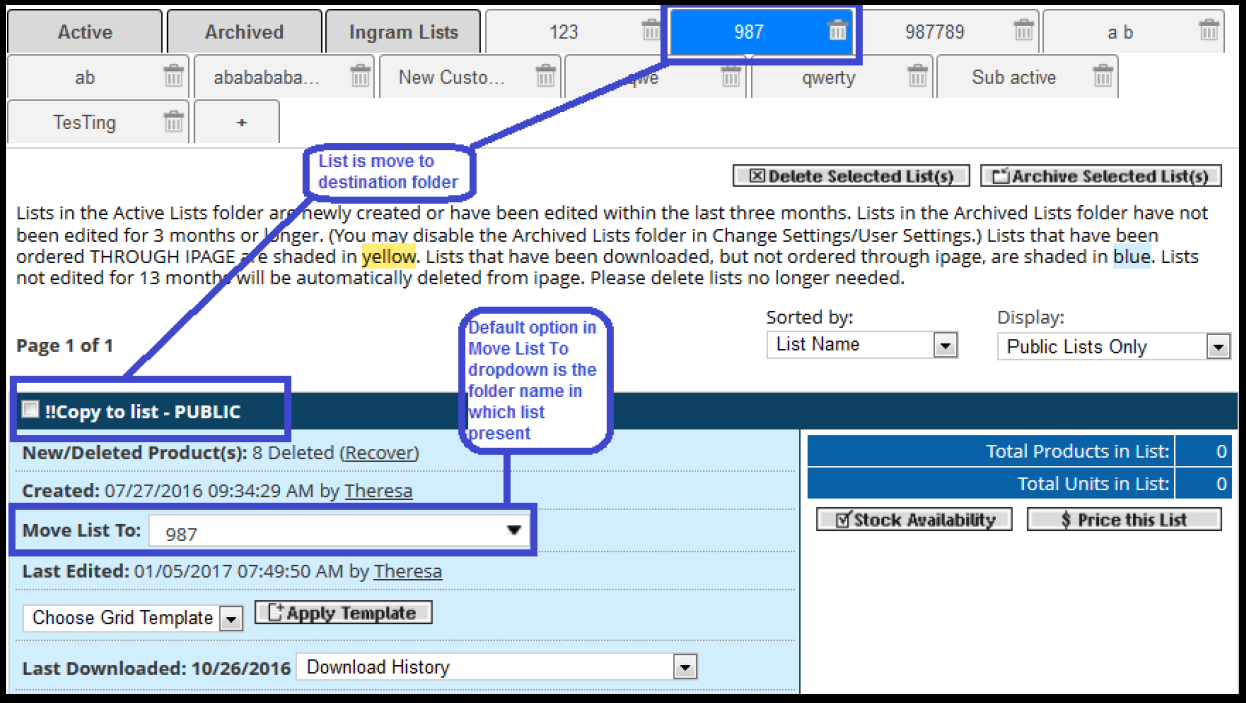
User is able to move selection list from Active/Ingram Lists/Custom folders .
By default selected Move List To option is the folder name in which the selection list exist.
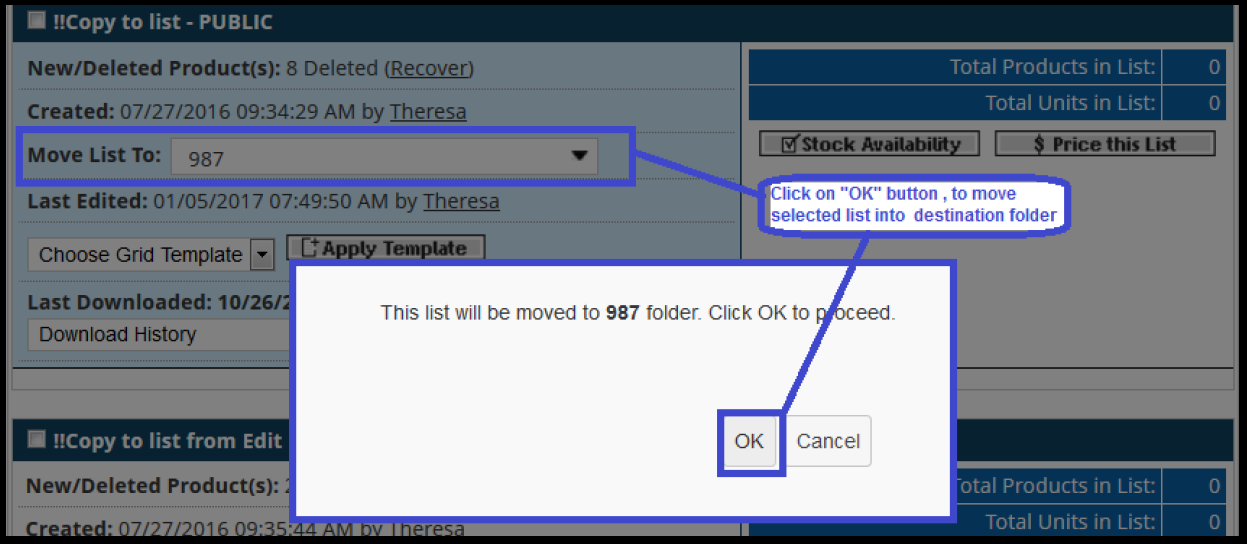
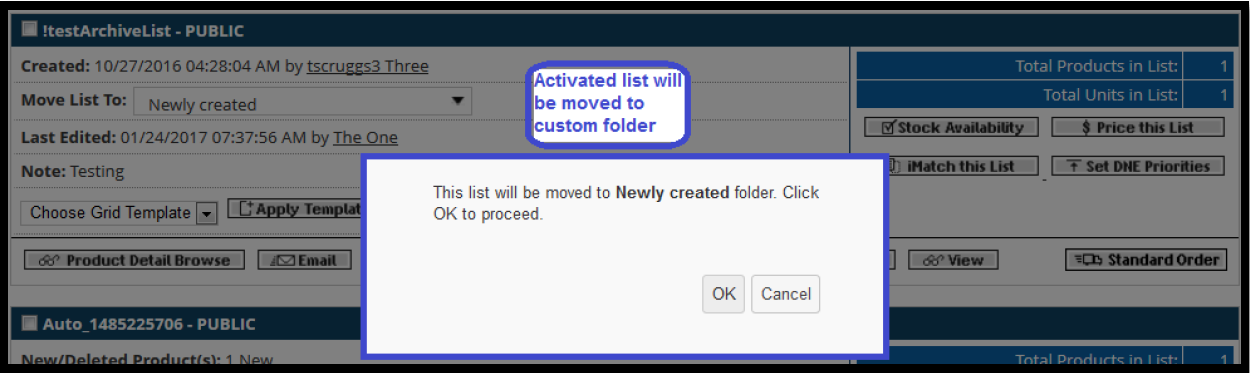
Select the destination folder in Move List To dropdown and click on Ok button present on the confirmation box.
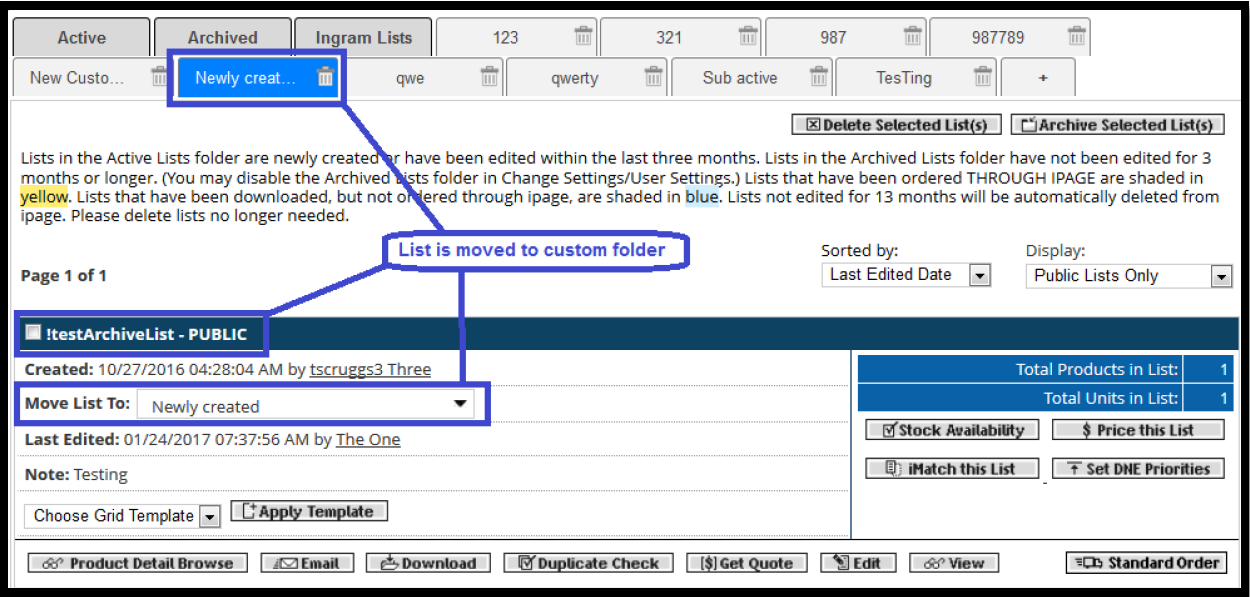
User can verify that list is moved in respective destination folder.
Search list using simple search
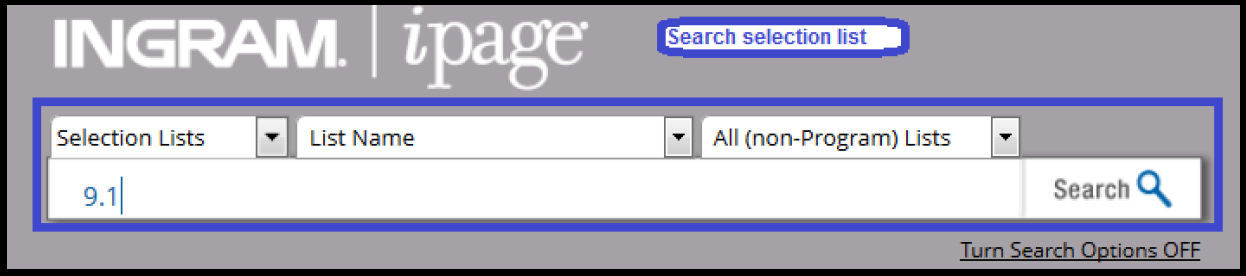
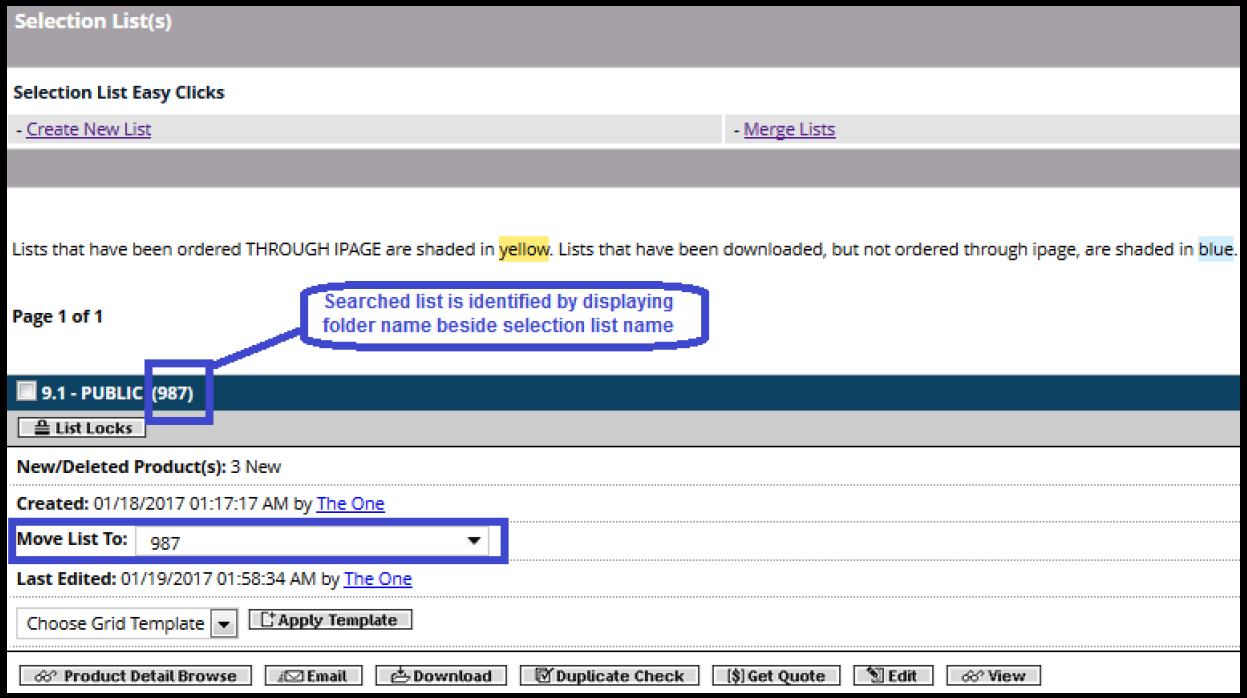
User can search selection list and can identify in which folder does it exist.
Delete custom folder
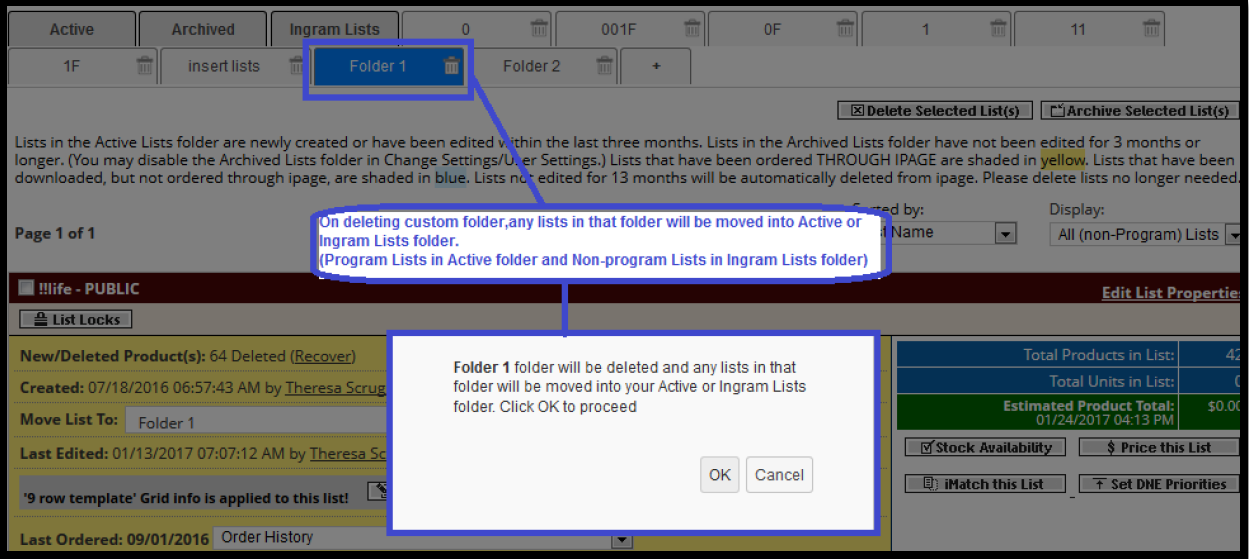
User can delete custom folders by clicking on trash icon beside the folder name.
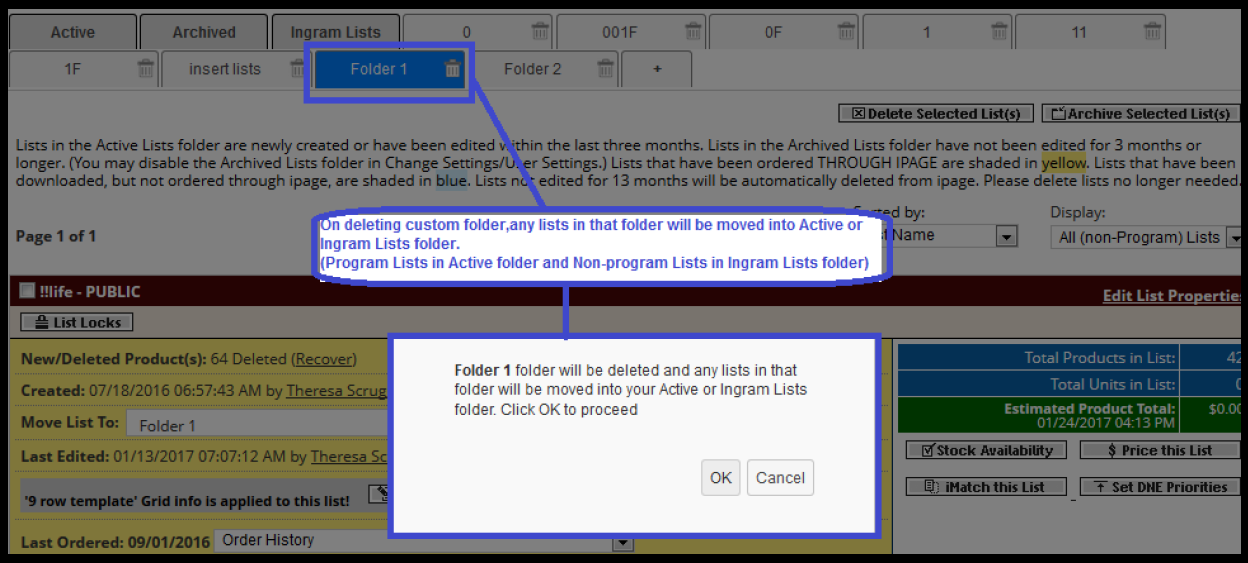
User will be asked for confirmation and notified that deleting custom folder will not delete any selection list in it, But all those selection lists will be transferred to default folders(Active or Ingram Lists)
Confirmation/Error message verbiage
1. On adding new custom folder: [insert folder name] folder has been added.
Eg. Folder Name: "Newly created".

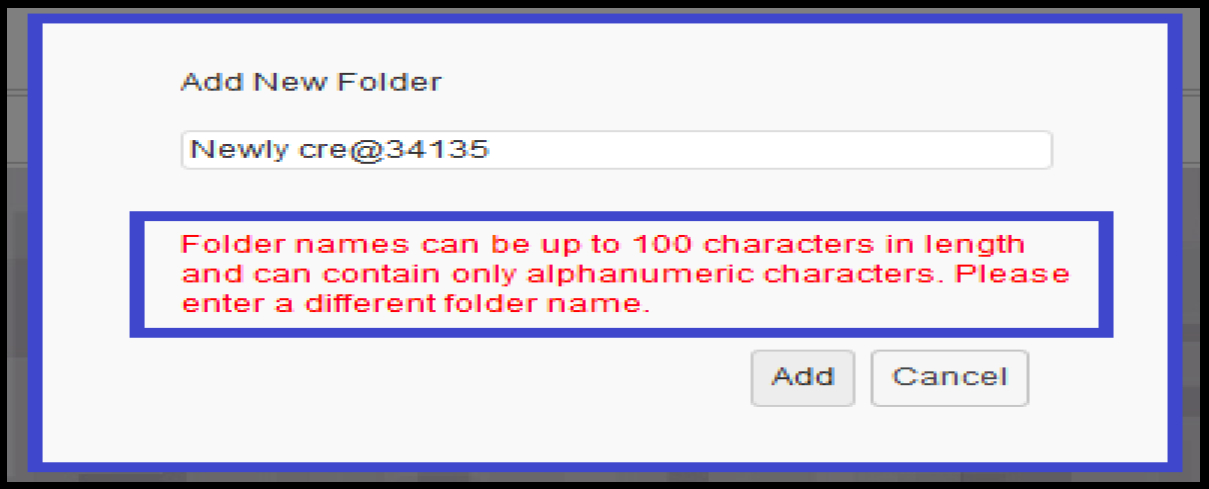
2. Folder name limitation: Folder names can be up to 100 characters in length and can contain only alphanumeric characters. Please enter a different folder name.
Eg. Enter folder name with special characters and click on Add button.
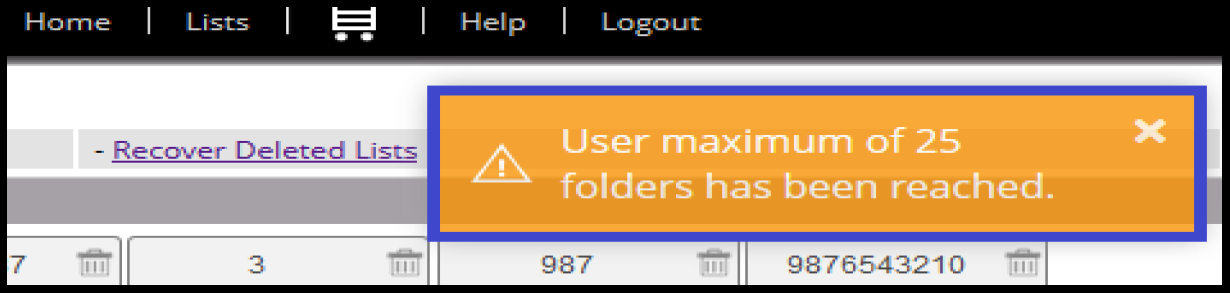
3. On exceeding folder creation limit: User maximum of 25 folders has been reached.
4. On deleting custom folder: [insert folder name] folder will be deleted and any lists in that folder will be moved into your Active folder. Click OK to proceed.

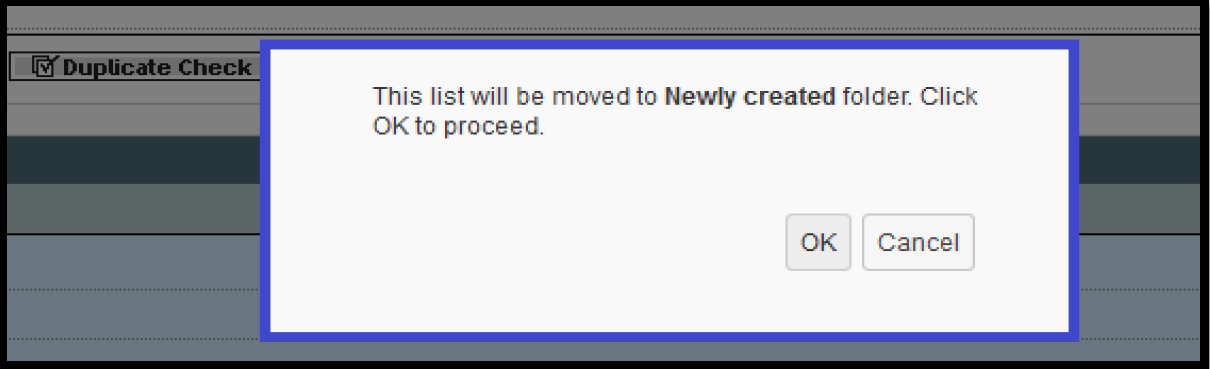
5. On Move List To custom folder: This list will be moved to [insert folder name] folder. Click OK to proceed.
6. After moving list to custom folder: Your list has been moved to [insert folder name] successfully.
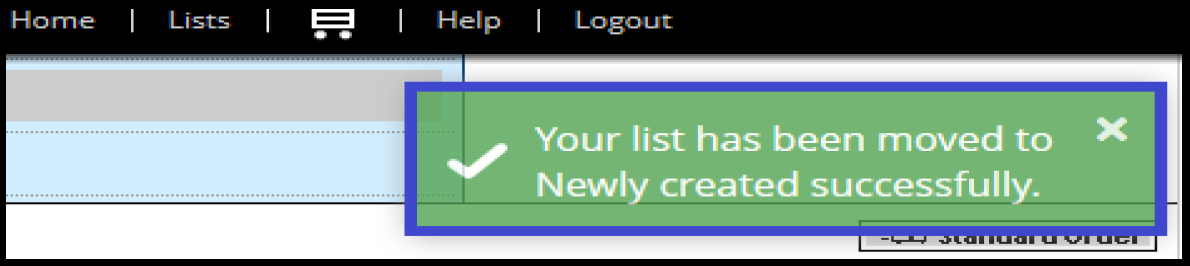
Add newly created list into custom folder
User is able to add newly created list into custom folder from following ways:
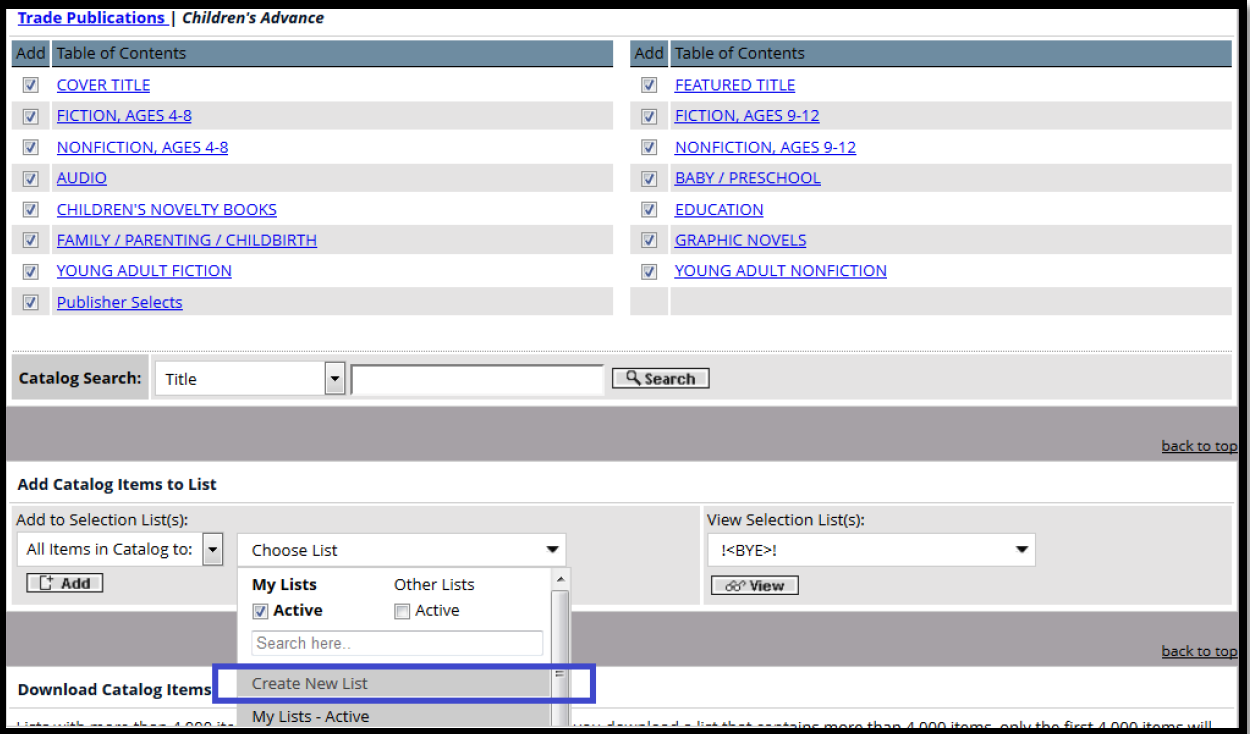
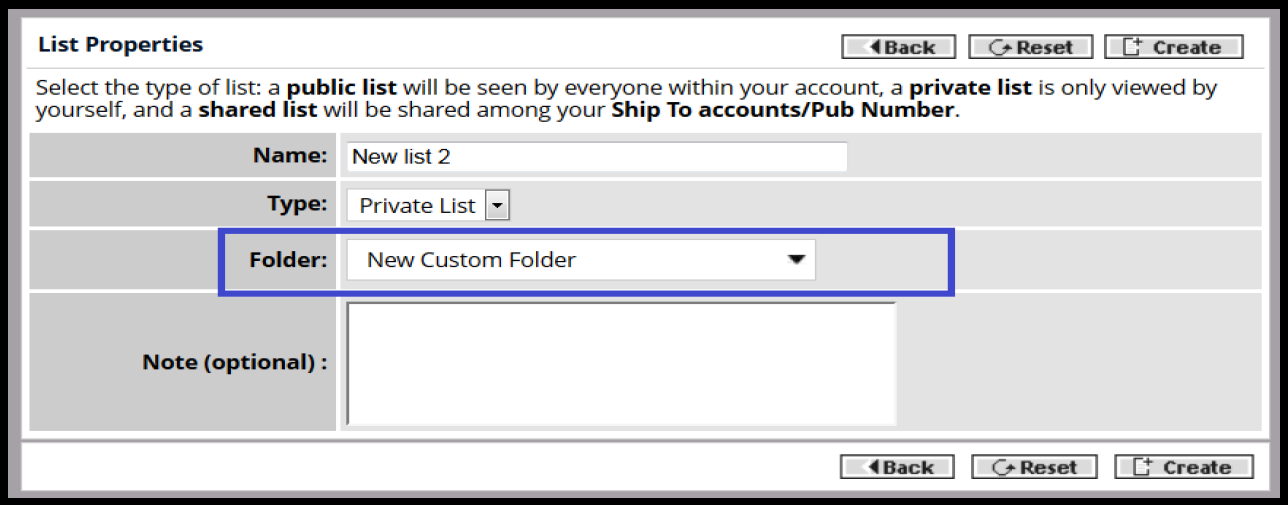
1. Go to Lists>>On selection list page>> Click on "Create New List"
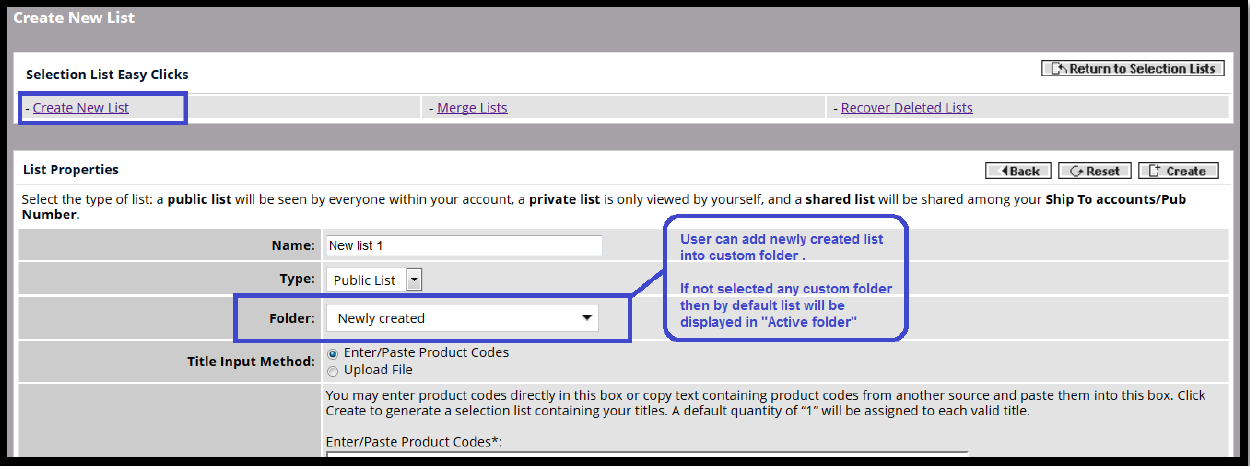
2. Make sure Change settings>>Selection list option preferences>>Delete/Copy/Move options>>Set to Page level>>
2.1. Go to Lists>>Click on Edit button>>In Copy/Move or Delete Item(s) section>>Click on "Create New List” OR
2.2. Go to Lists>>Click on View button>>Click on Show Edit options button>>In Copy/Move or Delete Item(s) section>>Click on "Create New List” OR
2.3. Go to Lists>>Click on Duplicate Check button>>In Copy/Move or Delete Item(s) section>>Click on "Create New List"
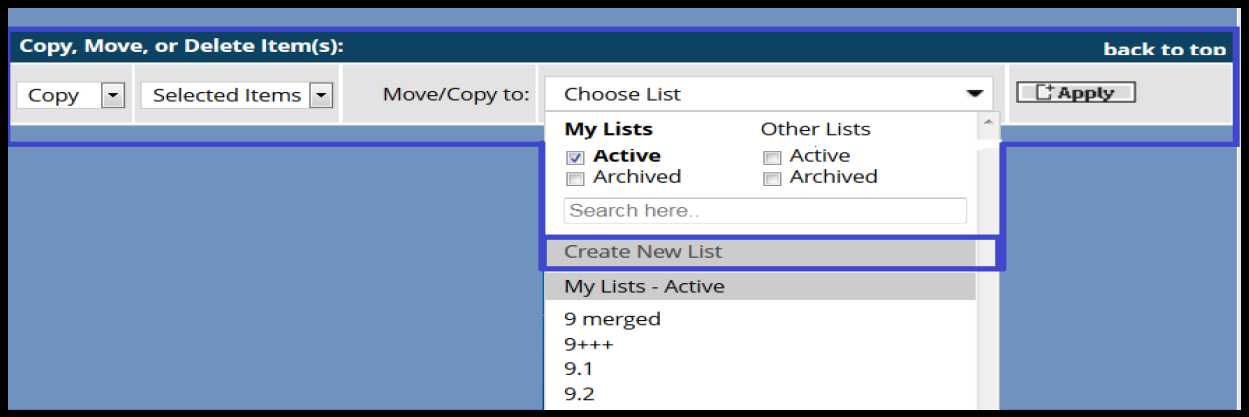
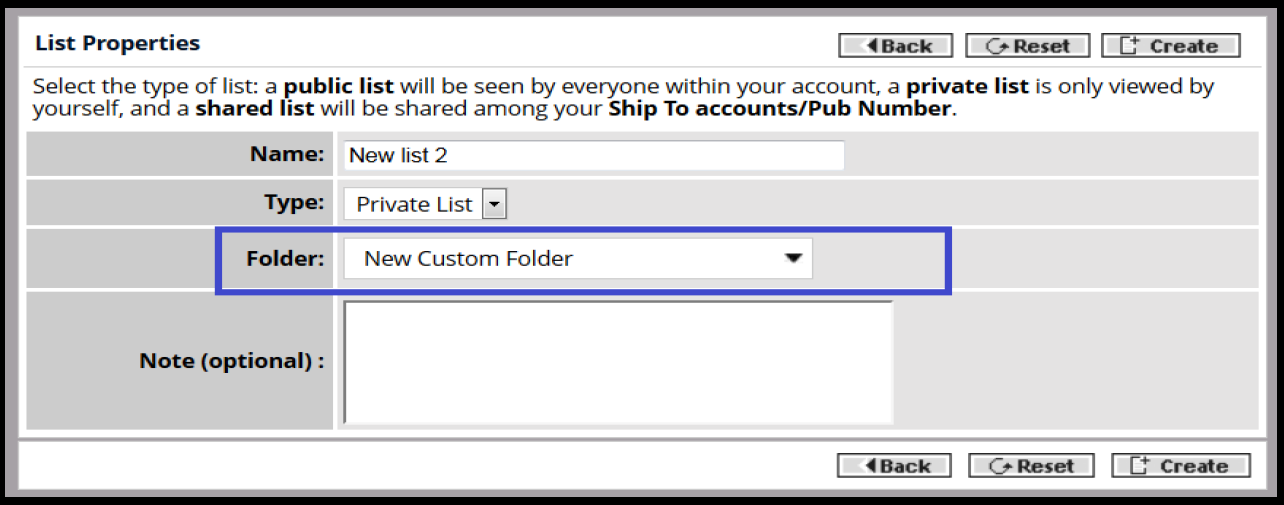
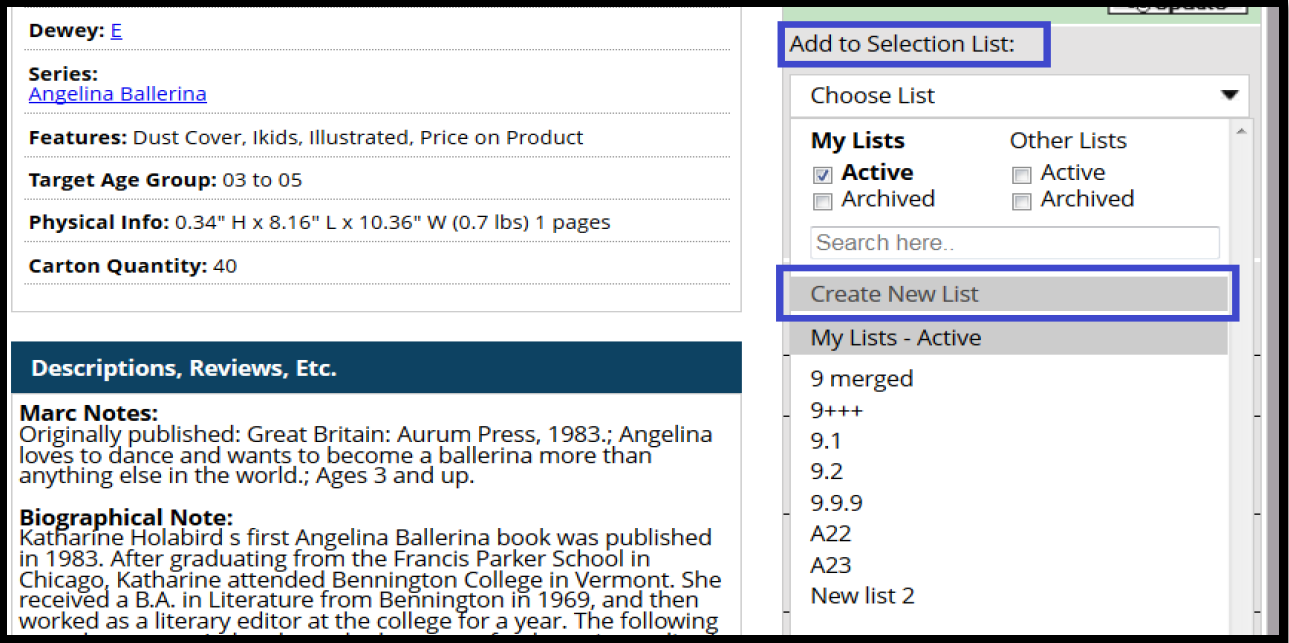
3. Go to Product detail page>>Add to Selection List section>>Click on "Create New List"
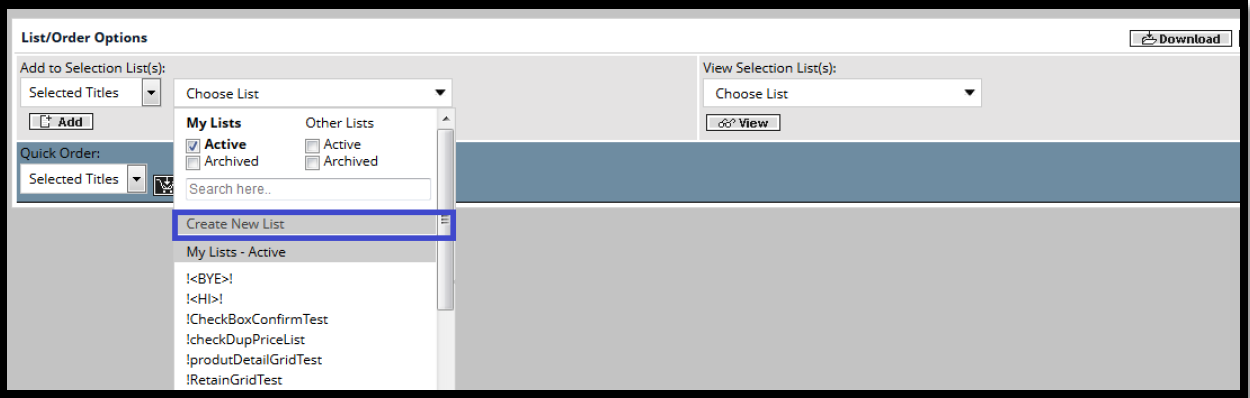
4. Go to Lists>>Click on Search Result View button>>List/Order options>>Click on "Create New List"
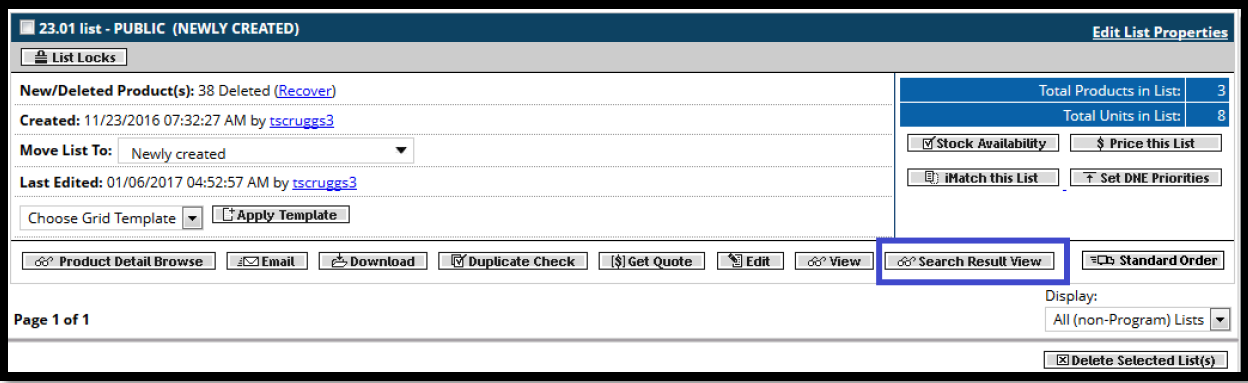
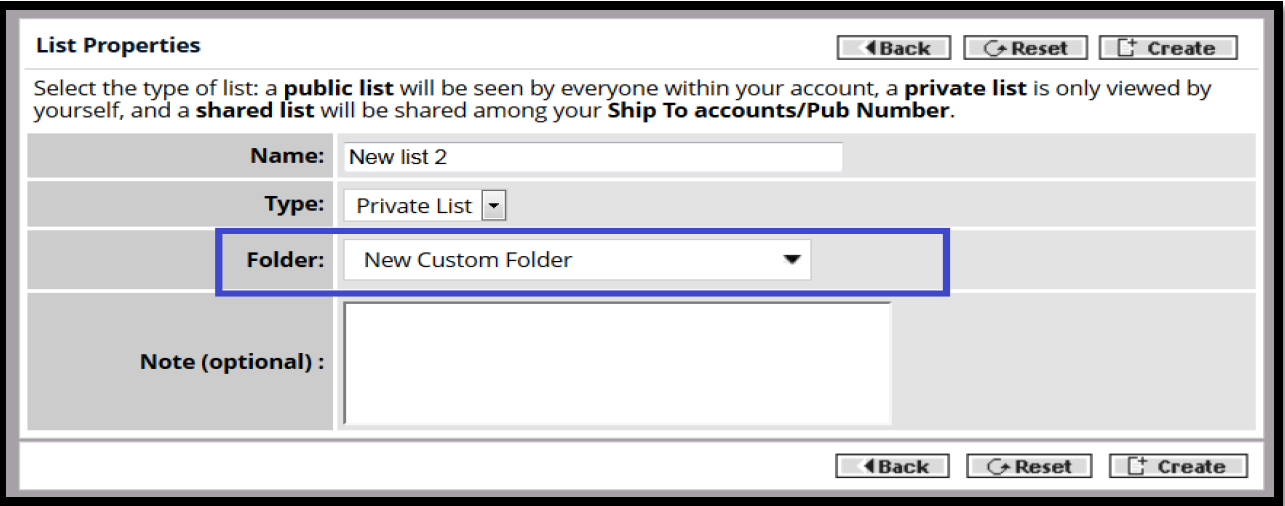
5. Go to Order menu>>Stock Availability>>Select list for Match Collection Against>>Click on Continue button OR
6. Go to Order menu>>iMatch>>Select list>>Click on Continue button
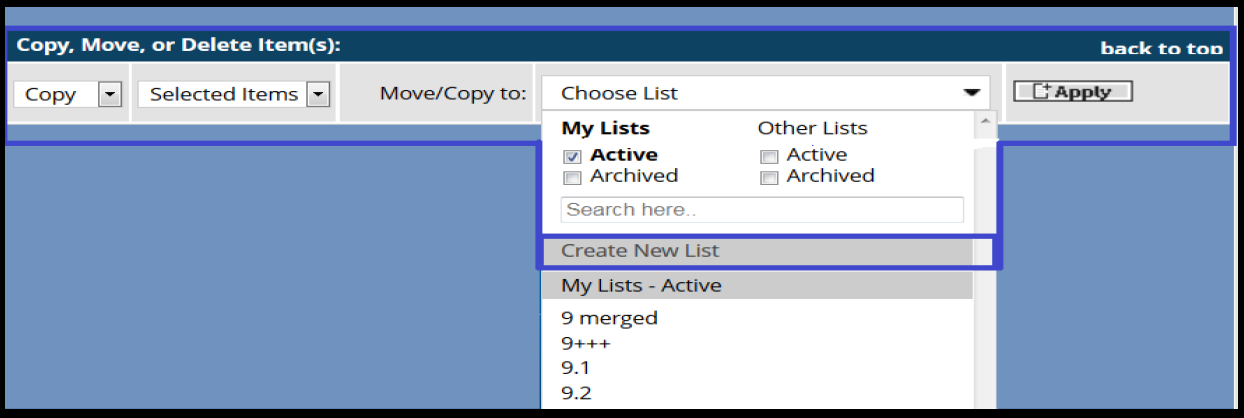
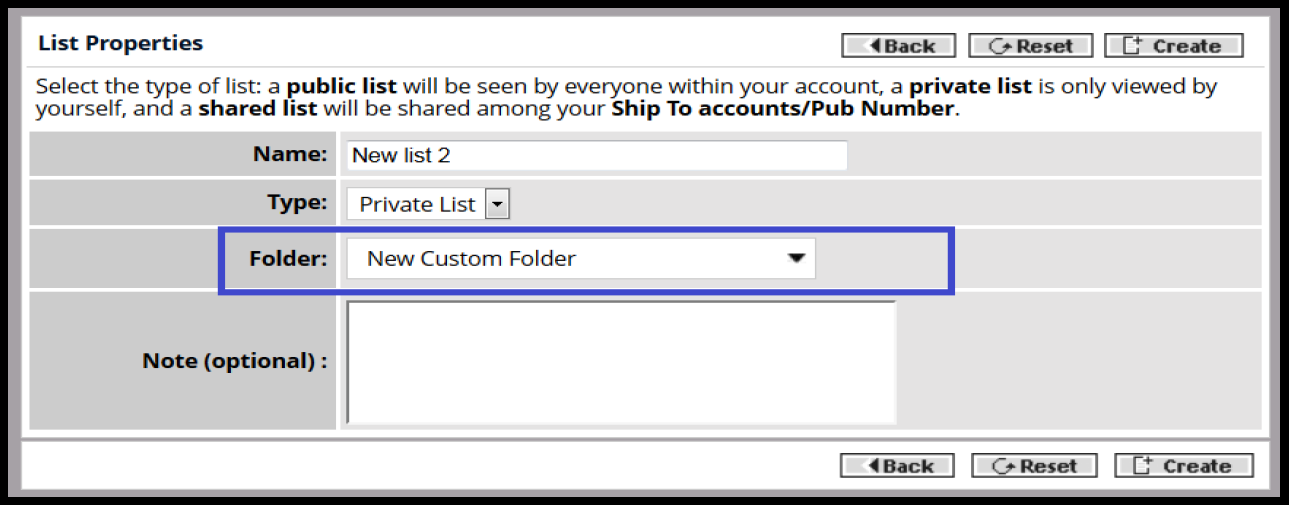
7. Go to Browse main menu >> BY INDUSTRY LISTS & PICK >> Best sellers >> Click on any link >>List/Order options>>Click on "Create New List"
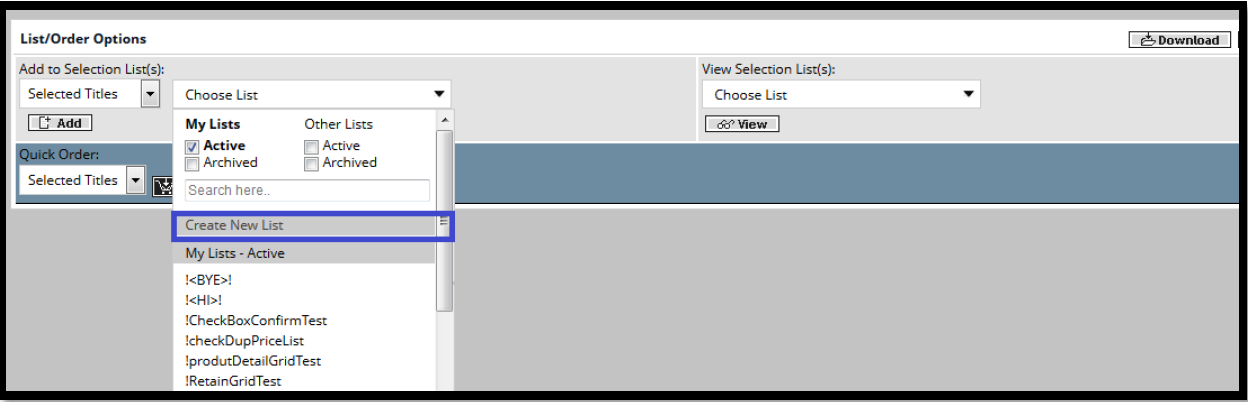
8. Go to Browse main menu >>Ingram Catalog/Supplements >> Trade Publications >> Browse Current Catalog
Move Archived list to Active folder and then to custom folder
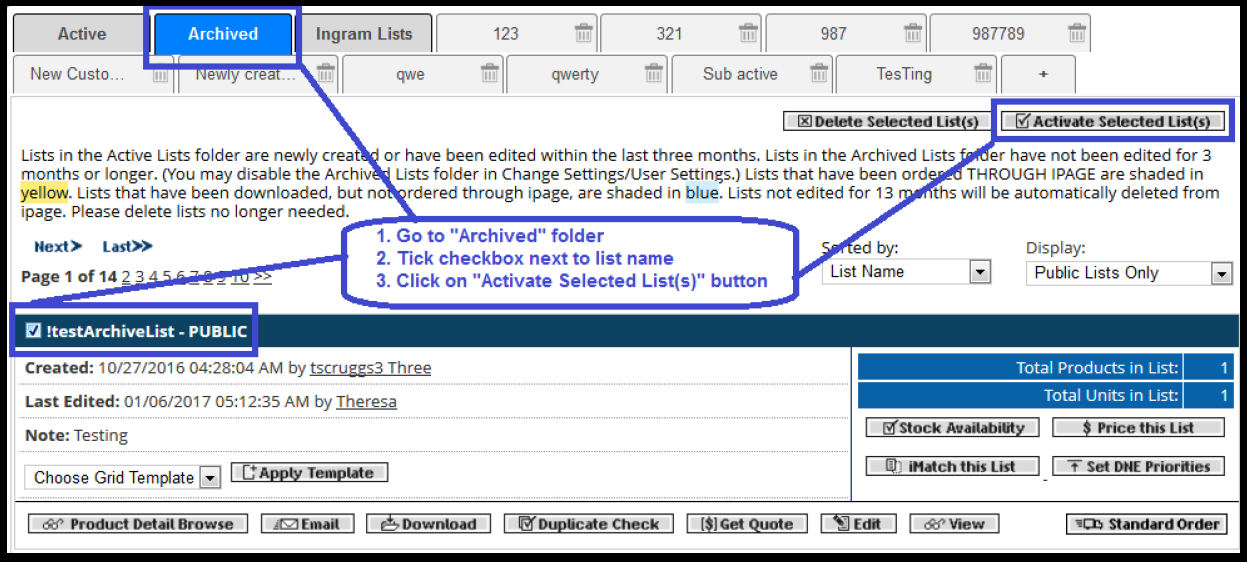
User cannot move archived list (s) directly to custom folder but he /she can activate the list and can move the activated list (s) from "Active" folder to "Custom folder ".
Steps as follows:
1. Go to "Archived" folder
2. Tick checkbox next to list name
3. Click on "Activate Selected List(s)" button
4. Go to "Active" folder
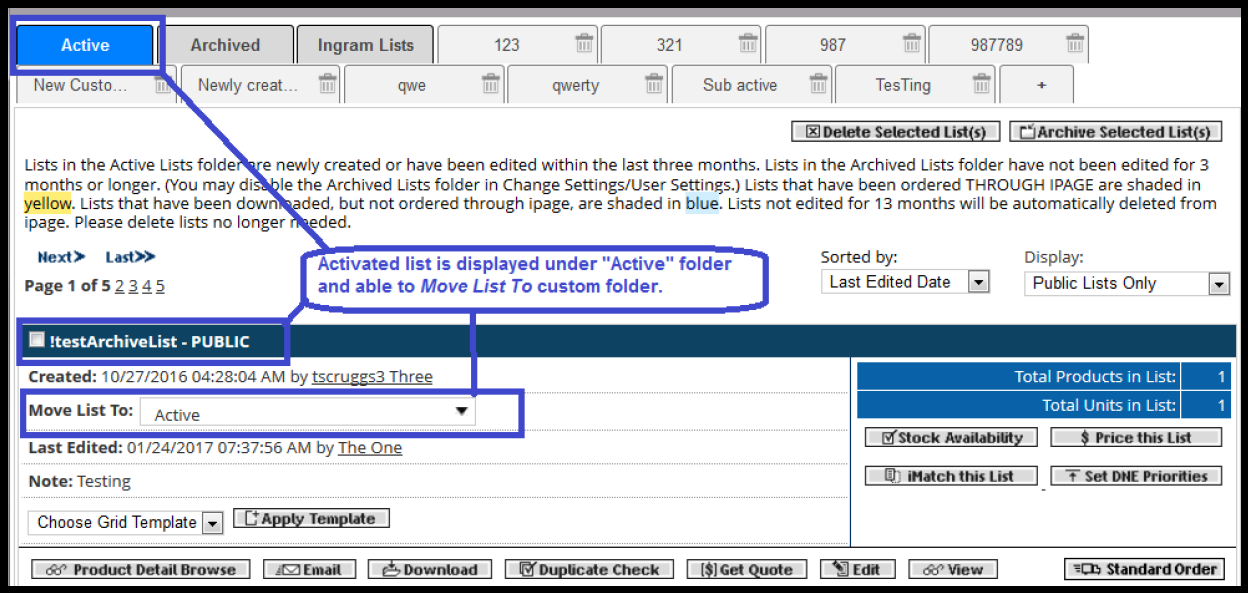
5. From "Active" folder Move List To custom folder "Newly created"
6. Verify list is moved to custom folder
Sort searched lists by "List Folder" order
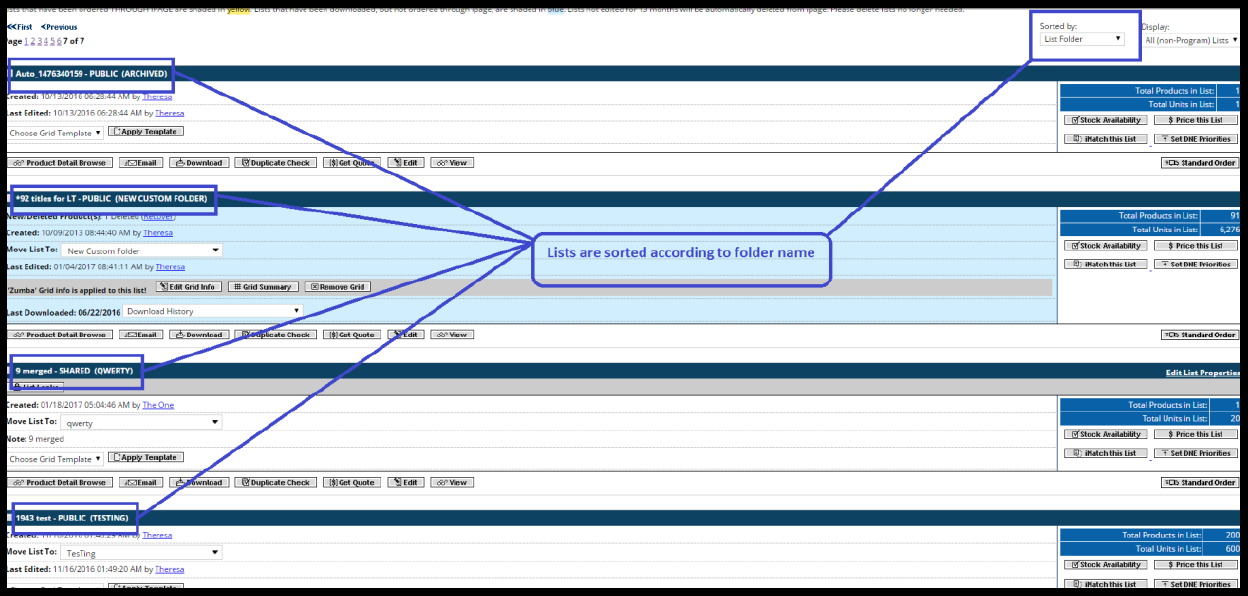
User can sort searched lists by "List Folder” order and identify in which folder particular list exists.
Steps as follows:
1. Select Product Type: Selection Lists and Search for keyword: 9
2. All lists with keyword 9 will be listed, select sorted by: List Folder
3. Verify all searched lists are arranged in "List Folder" order
Summary
- This feature is available for all users/segment who enables user setting for Enable Folders.
- This feature you can see in List of List page only.
- A user can add max 25 Custom folder.
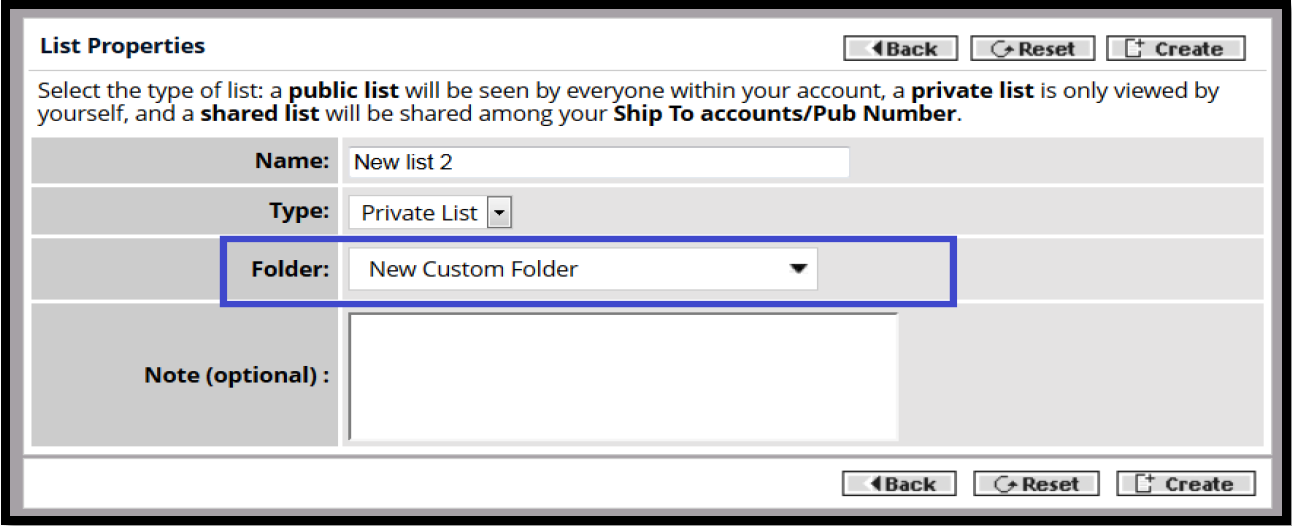
- At the time of creating new selection list now application shows one field to choose folder in which we want to create this list if we not select any it will be created under Active Folder.
- User not able to move any list from Archive list to any custom folder before that he needs to move that list to Active folder.
- If user delete custom folder application only delete that folder not the selection list it will moved to Active folder.
- When user search for any selection list from home page application will show folder name in front of list name in search result.
- There is limit of 100 characters while naming custom folder.
Zagade, Shailesh. (2017, January 31). Folder Structure for Selection List Document.
Comments